

How to Scan Pokémon Cards with Your Phone
By TCG Vault Team · · 7 min read
Written by the team that builds TCG Vault — how we research these guides.
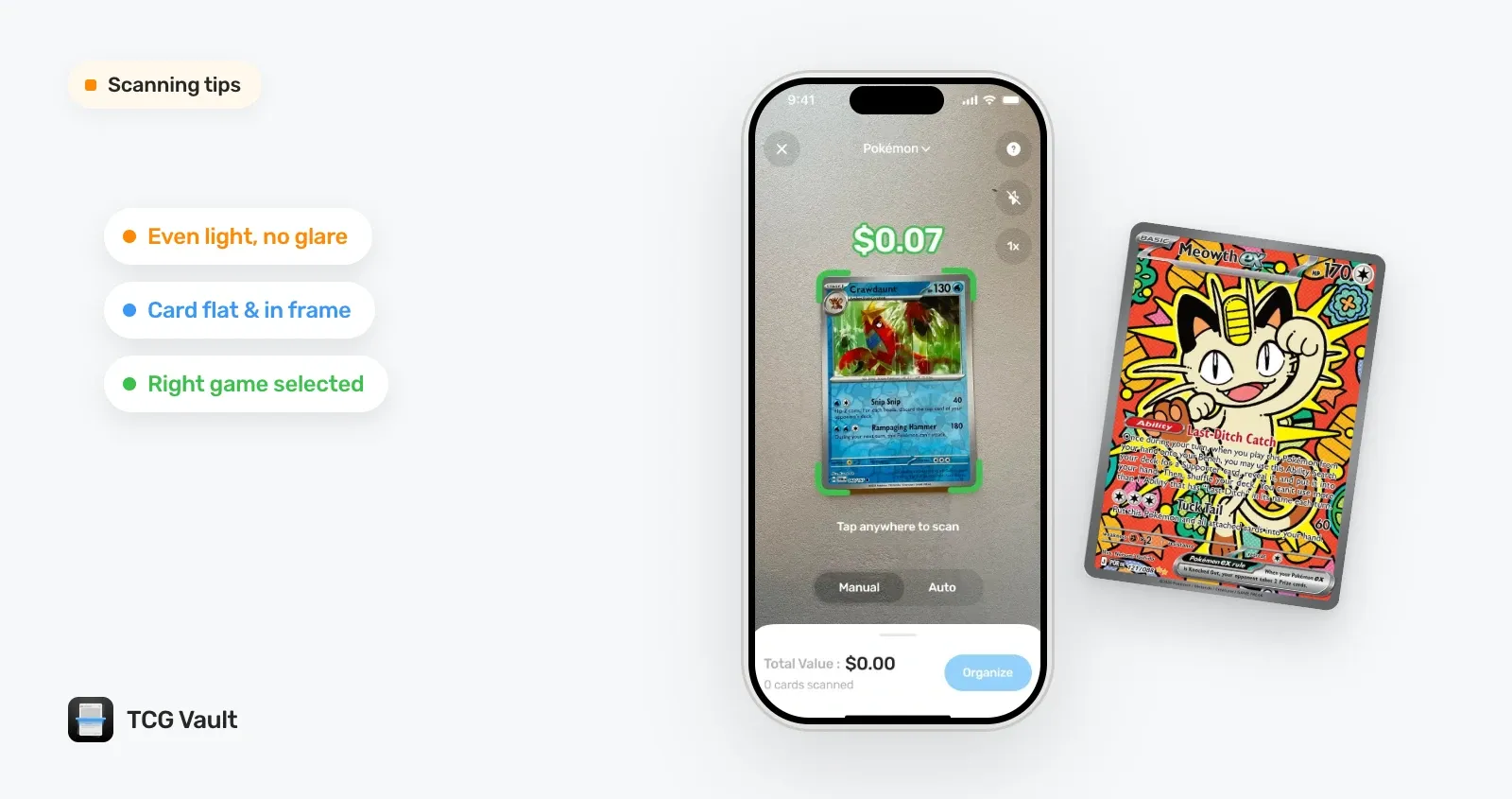
Knowing how to scan Pokémon cards with your phone saves a lot of typing. Instead of searching card names one by one, you point the camera at a card and a Pokémon card value scanner tells you what it is and what it’s worth. The whole thing takes a few seconds per card once your setup is right.
This guide covers that setup, how scanner apps tell one Charizard from another, how to deal with glare on holo cards, and what to do when an app picks the wrong card.
Can you scan Pokémon cards with your phone?
Yes. A card scanner app uses your phone’s camera to read the text printed on the card, then looks the card up in a card database. TCG Vault works this way. After a scan it shows the card’s name, set, collector number, rarity and current market price, and you can add the card to a collection that keeps a running total value.
Here’s what you need:
- An iPhone with TCG Vault installed.
- A flat, plain surface. Dark and matte works best: a mouse pad, a playmat or a sheet of black paper.
- Soft, even light. Indirect daylight from a window or an overhead room light beats a desk lamp aimed at the card.
How to scan Pokémon cards, step by step
- Open the app and pick the game. Make sure Pokémon is the selected game. If another game is selected, the app may not find your card.
- Lay the card flat. Put it face up on your plain surface. A warped or curled card reflects light unevenly, so press it flat or scan it inside a clean sleeve.
- Frame it. Hold the phone directly above the card so the card fills most of the screen, with a little background showing on every side.
- Hold still for a moment. Give the camera a second to focus. In Auto mode TCG Vault scans continuously as cards come into frame; in Manual mode it captures one card per tap.
- Check the result. Compare the name, set and collector number on screen with the card in your hand. The number printed at the bottom of the card, such as 199/165, is the fastest check.
- Save it. Add the card to a collection, choose how many copies you have, and the collection’s total value updates.
How does a Pokémon card scanner identify a card?
Scanner apps differ in how they recognize a card. TCG Vault reads the text: on-device text recognition picks up the card’s name, collector number and other printed details, and the app matches them against its card database.
The collector number is what makes the match exact, because names repeat constantly. As of September 2026, our database lists 250 English Pokémon cards with “Charizard” in the name and 570 with “Pikachu.” Even inside one set, the same name can be several very different cards.
Here’s Charizard ex in Scarlet & Violet 151, with Near Mint TCGplayer market prices from our database on September 18, 2026:
| Card | Number | Rarity | Near Mint market price |
|---|---|---|---|
| Charizard ex | 006/165 | Double Rare | $8.43 |
| Charizard ex | 183/165 | Ultra Rare | $40.28 |
| Charizard ex | 199/165 | Special Illustration Rare | $362.20 |
Same name, same set, and the top card costs more than 40 times the cheapest one. If a scanner only read “Charizard ex,” it would have to guess. Reading the number removes the guess. It’s also why a scan can go wrong: if glare or blur hides the number, the app has less to work with.
Tips for better card scans
Most failed scans come down to light, angle or the case the card is in.
Use soft, even light
Harsh light from one side throws a shadow across the card and a bright hotspot onto glossy surfaces. Scan near a window with indirect daylight or under an overhead light. If your room is dim, add light rather than relying on the camera to brighten a dark image.
Keep the background plain and dark
A busy tablecloth or a stack of other cards behind the one you’re scanning gives the app extra edges and text to sort through. A dark, matte background makes the card’s outline and text stand out.
Fill the frame and keep the phone parallel
Tilting the phone skews the text and puts the bottom of the card, where the number is, farther from the lens. Hold the phone flat above the card. If the text looks soft, move a little farther away and let the camera refocus; trying another zoom level also helps.
Sleeves and top loaders
Start with the card in its penny sleeve. Thick top loaders, magnetic cases and scuffed plastic add reflections right where the text is, so if a card won’t scan in its case, take it out on a clean surface, scan it, and put it straight back.
Use the flash only in low light
The flash helps in a dim room, but on holofoil it creates a hard white reflection. Turn it on when the image is too dark and off when you see a hotspot.
How to scan holo and full-art cards without glare
Holo, reverse holo and textured full-art cards are the hardest to scan because their surfaces are made to reflect light. A few adjustments fix most of it:
- Move the reflection, not the card text. Tilt the phone a few degrees until the hotspot slides off the name and the number. The artwork can reflect all it wants; the text is what the app needs.
- Diffuse the light. A lamp bounced off a white wall or ceiling gives a softer light than a bare bulb.
- Skip the flash. On a holo card it tends to put a hotspot right on the text.
- Mind the printing. A scanner reads text, and the text on a reverse holo is the same as on the regular print. The printing changes the price, so if a number looks off, check which version you have. Our reverse holo vs holo guide explains the difference.
Why did the scanner pick the wrong card?
When a scan comes back wrong, the cause is usually visible on the card itself:
| What you see | Likely cause | What to do |
|---|---|---|
| Right Pokémon, wrong set or number | Glare or blur hid the collector number | Rescan with the bottom of the card in sharp focus |
| No match at all | Wrong game selected, card too dark or out of focus | Check the game, add light, try another zoom level |
| Price looks too high or too low | A different printing or rarity of the same card | Compare the number and rarity on screen with your card |
| Match keeps jumping between cards | Other cards or text in the frame | Scan one card at a time on a plain background |
If a card still won’t scan, search for it by name instead and pick the result whose set and number match your card.
One more thing a scan can’t tell you: whether the card is genuine. The app identifies the card a piece of cardboard claims to be. A counterfeit with the right name and number can still match a real card, so check suspicious cards with our guide on how to tell if Pokémon cards are fake.
How to scan a whole binder or a stack of cards
Scanning a collection goes fastest when you batch the work:
- Sort first. Scanning one set at a time makes it easier to spot a wrong match, because every result should show the same set.
- Use Auto mode for stacks. Slide cards under the camera one after another and let the app pick each one up. Switch to Manual mode for holo cards that need careful framing.
- Watch for duplicates. Both scan modes detect duplicates, which helps when a binder holds several copies of the same card.
- Save as you go. Add each batch to a collection so the running total builds up while you work.
What does the price after a scan mean?
The price TCG Vault shows is a TCGplayer market price for a Near Mint copy of that exact card. It reflects recent marketplace data; it isn’t an appraisal of your copy.
Two things move the real value of your copy away from that number. Condition comes first: whitened edges, scratches and creases pull a card below Near Mint, and buyers pay less for it. The market itself is the second: prices change daily, which is why a premium subscription adds one-, three- and six-month price charts, so you can see whether a price is climbing or sliding before you buy, sell or trade.
For a single card you don’t have on hand, the Pokémon card value checker looks up prices by name, set and number.
Frequently asked questions
Can I scan Pokémon cards for free?

Yes. TCG Vault is free to download and includes basic scanning. A premium subscription, weekly or yearly with prices shown in the app, unlocks unlimited scanning, price history charts, multiple collections and marketplace links.
Does TCG Vault work on Android?
Yes. TCG Vault is available for iPhone on the App Store and for Android on Google Play.
Do I need an internet connection to scan cards?
Yes. Identifying a card and loading its price need a connection. Card data you have already loaded stays available offline.
Which other card games can I scan?
Eleven more: Magic: The Gathering, Yu-Gi-Oh!, One Piece Card Game, Disney Lorcana, Flesh and Blood, Star Wars: Unlimited, Digimon Card Game, Union Arena, Grand Archive, Gundam Card Game and Riftbound. Pick the game in the scanner before you scan.
How often are card prices updated after a scan?
Daily. Prices come from TCGplayer market data, and you can show them in more than 30 currencies.
Keep reading
-
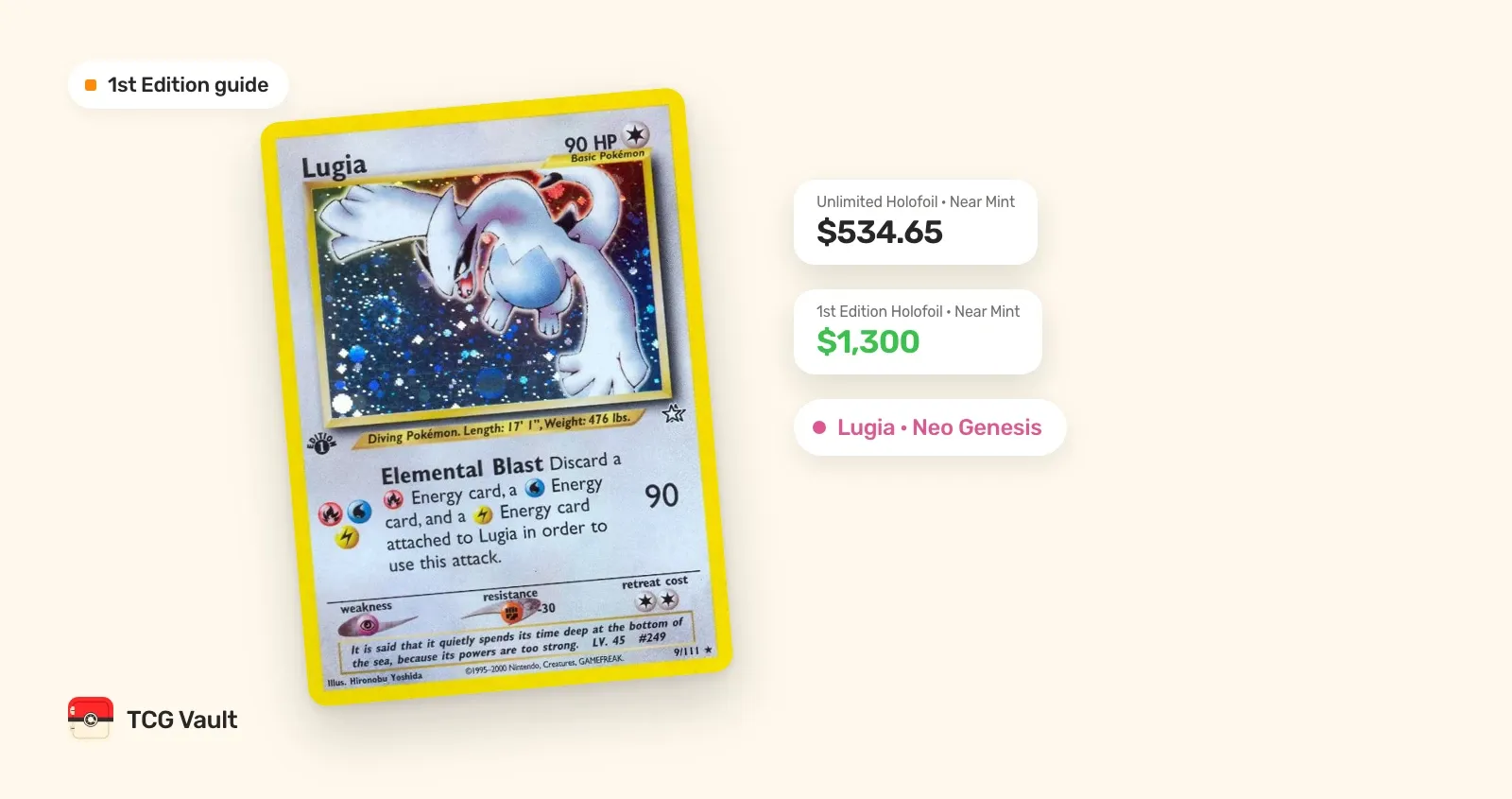
First Edition Pokémon Cards: How to Spot Them and What They're Worth
First edition Pokémon cards have a black 1st Edition stamp and come from Base Set to Neo Destiny (1999–2002). How to spot one, plus real prices next to Unlimited.
-
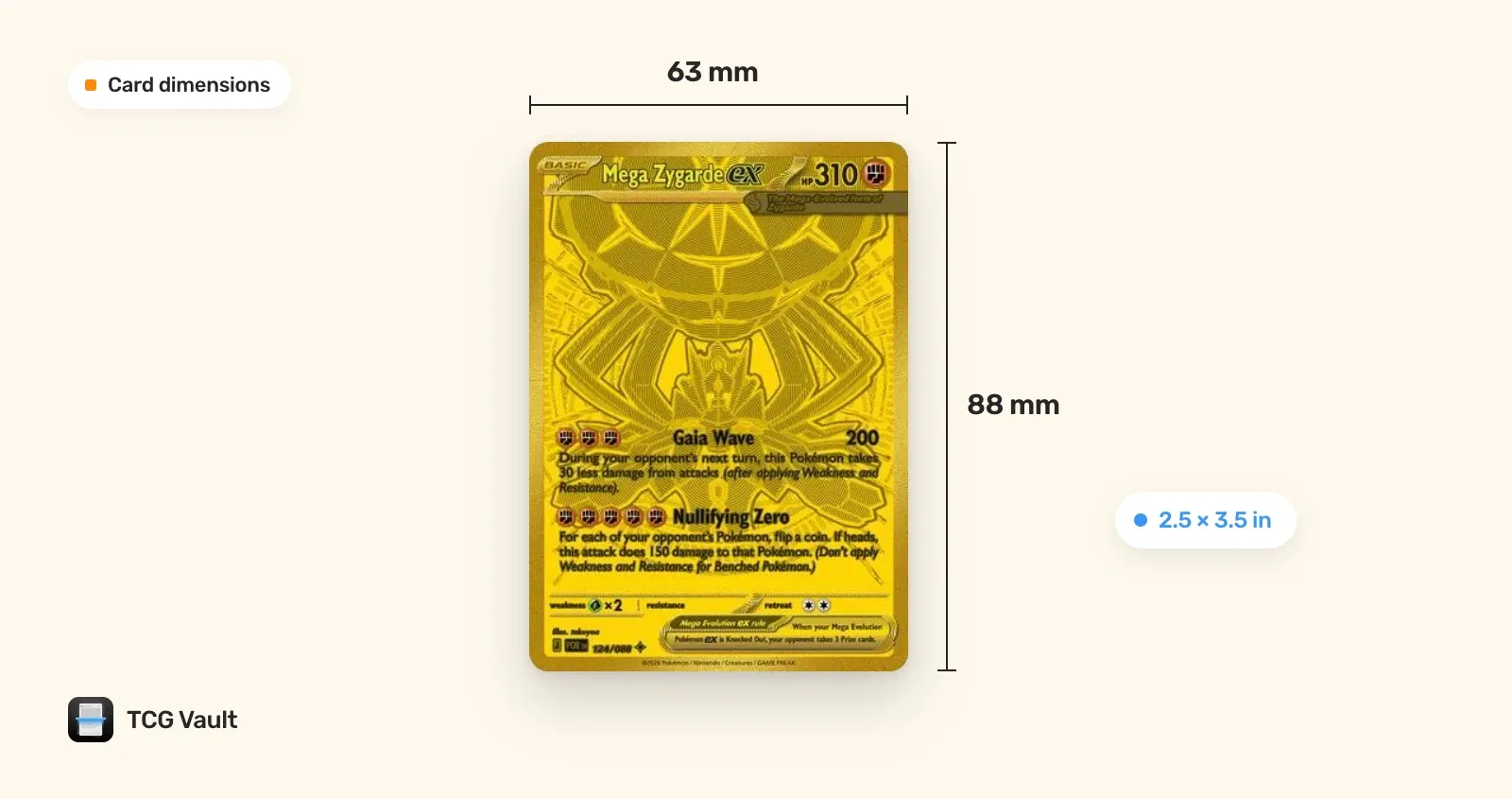
What Size Are Pokémon Cards? Card, Sleeve and Holder Sizes
Pokémon cards are 2.5 x 3.5 inches (63 x 88 mm), the same as Magic cards. Which sleeves, top loaders and holders fit them, and why Yu-Gi-Oh! sleeves don't.





See what your cards are really worth.
Scan a card with your phone and TCG Vault shows its market price in seconds — then keeps your whole collection’s value up to date.
 Download on iOS
4.5★ from 107 App Store ratings
Still choosing? See 9 card scanner apps compared →